TUATECH APP iPhone User guide & support

AudioBooks

A simple player for audiobooks you already have.

Pick a folder or a file in the Files app and press play. AudioBooks remembers your place in every book, reads chapters and covers from your files, and stays out of the way. This page explains how everything works, step by step.

  • No account
  • No ads
  • No tracking
  • Light and dark themes
  • Files stay on your iPhone
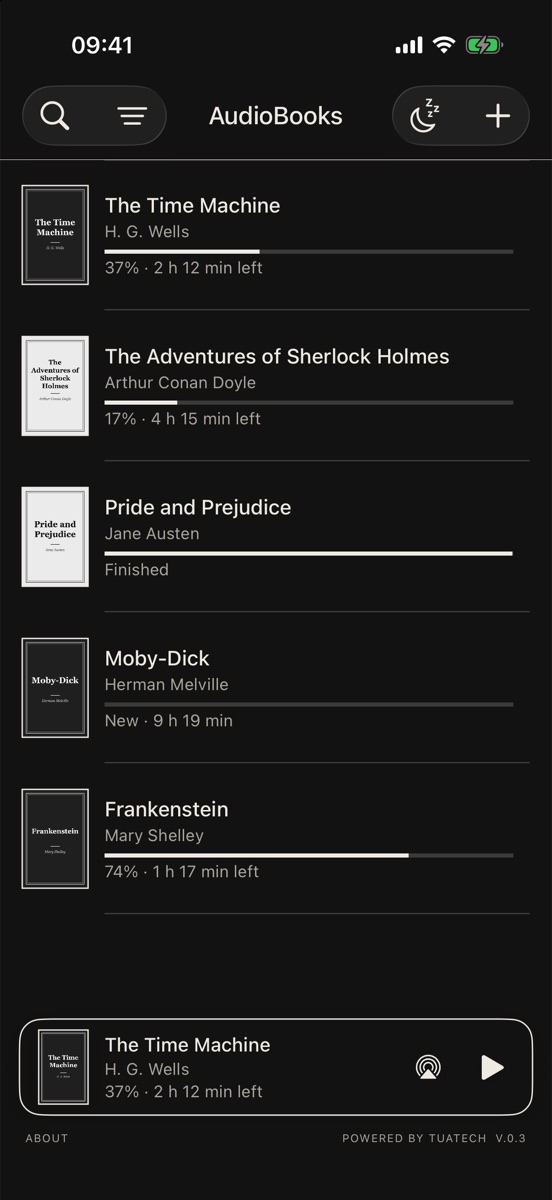
AudioBooks library with five books and the current book at the bottom

A look inside

Eight screens you will meet in the app, shown in the dark theme. Pick one to see it.

Library
Library All your books with covers, progress and time left. The book you are listening to stays at the bottom.

Getting started

Three steps from a folder of files to listening.

01

Tap +

In the top right corner of the library. The first time, the library is empty and shows an Import button instead.

02

Choose a folder or a file

Find your book in Files, open its folder and tap Open. Or tap a single file, such as an M4B.

03

Press play

The book appears in the library with its title, author and cover. Tap it to open the book page.

What becomes one book

AudioBooks decides from what you pick.

  • A folder with audio files is one book. The files play one after another.
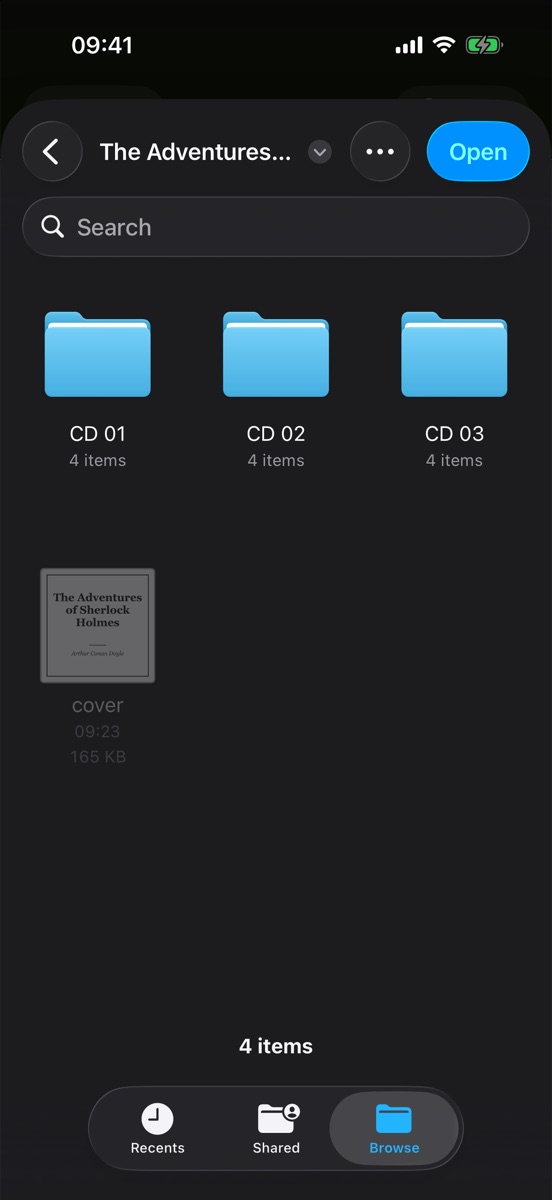
  • Subfolders such as CD 01, CD 02 are collected into the same book, up to three levels deep, in the order of their names.
  • A folder with several M4B files gives one book per M4B, because each M4B is usually a complete book.
  • A single file is one book. An M4B with chapters shows its chapters as tracks.

Title, author and cover

For a folder, the title is the folder name. For a file, it comes from the file's tags or its name. The author is read from the tags. The cover comes from the file or from an image in the folder, such as cover.jpg or folder.jpg. Covers are shown in black and white to match the rest of the app. You can change all of this later, see Editing a book.

If you pick a book that is already in the library, the app tells you and offers to open it.

Your files are not copied. AudioBooks plays them where they are and only remembers the location. If you move or rename the folder later, the app will no longer find it, and you can import it again.
Files picker inside a book folder with CD 01, CD 02, CD 03 subfolders and a cover image
A book folder with CD subfolders.
Tap Open to import it all.
Library list with progress and status of each book
Progress and time left
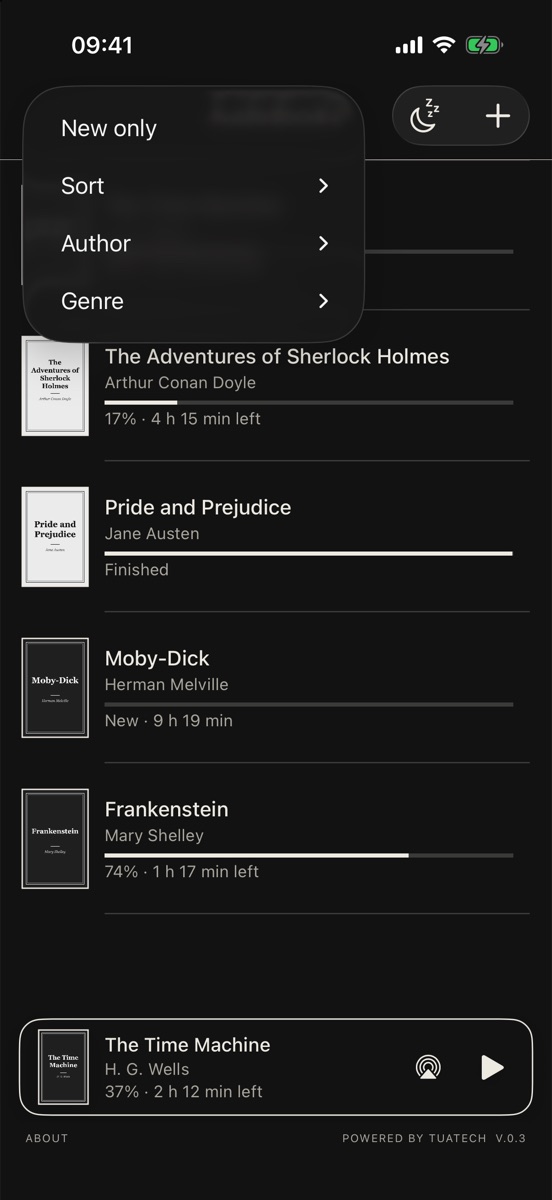
Filter menu with New only, Sort, Author and Genre
Filters and sorting

Library

Every book you import, with its cover, author and how far you are.

  • Status under each book: New with its total length, the percentage and time left once you start, or Finished.
  • The current book stays at the bottom of the screen. Tap it to open the book page, or use its play button and audio output button right there.
  • Search (magnifying glass) finds books by title or author.
  • Filters (three lines): New only, Sort by date added, author or title, Author and Genre. Filters reset the next time you open the app.
  • Press and hold a book to edit it, mark it as finished or as new, or delete it.
  • Light and dark themes: the app follows the iPhone appearance, with warm paper in light mode and an inverted dark theme. Switch it in Settings → Display & Brightness, or in Control Center.

Filtering by genre is part of the Full version.

Player

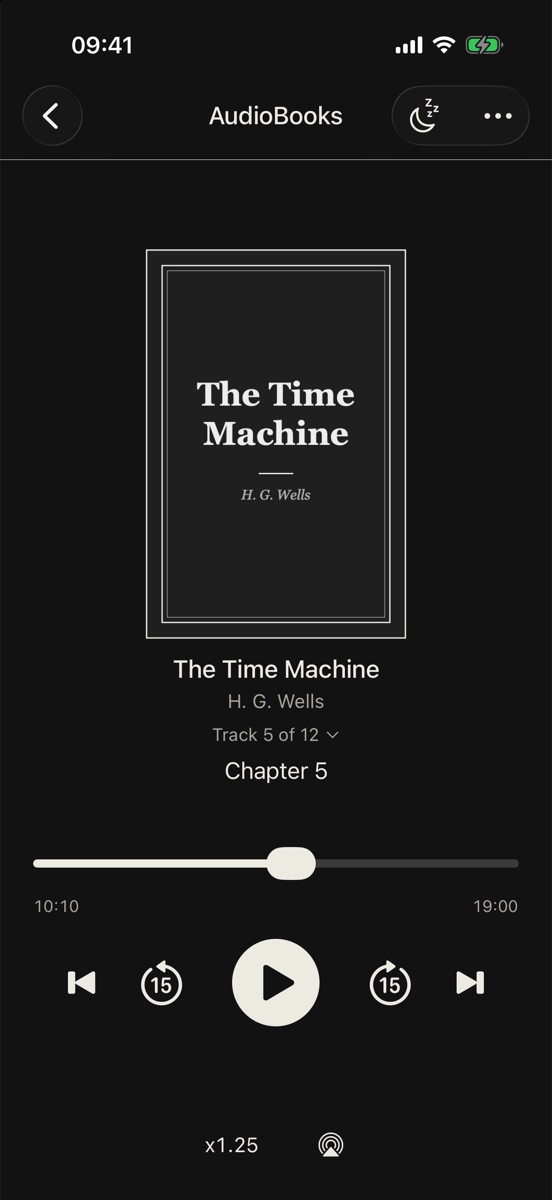
Tap a book to open its page: a large cover, one progress bar and the controls.

  • Play and pause in the middle; 15 seconds back and forward on either side; previous and next track at the edges.
  • The progress bar shows the current track. Drag it to move within the track.
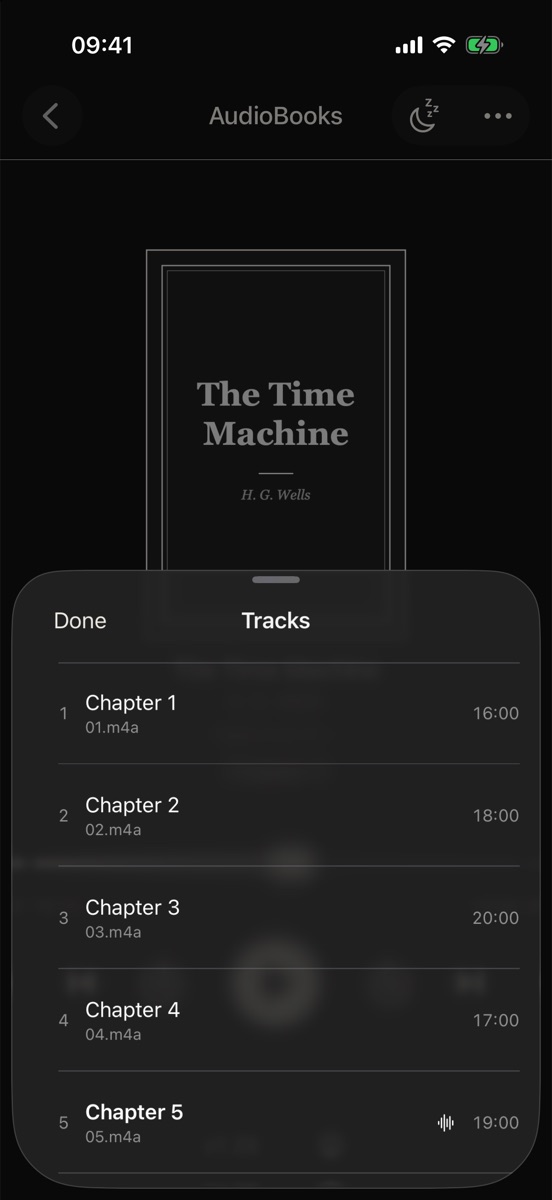
  • Track 5 of 12 under the author opens the list of tracks, see Chapters and tracks.
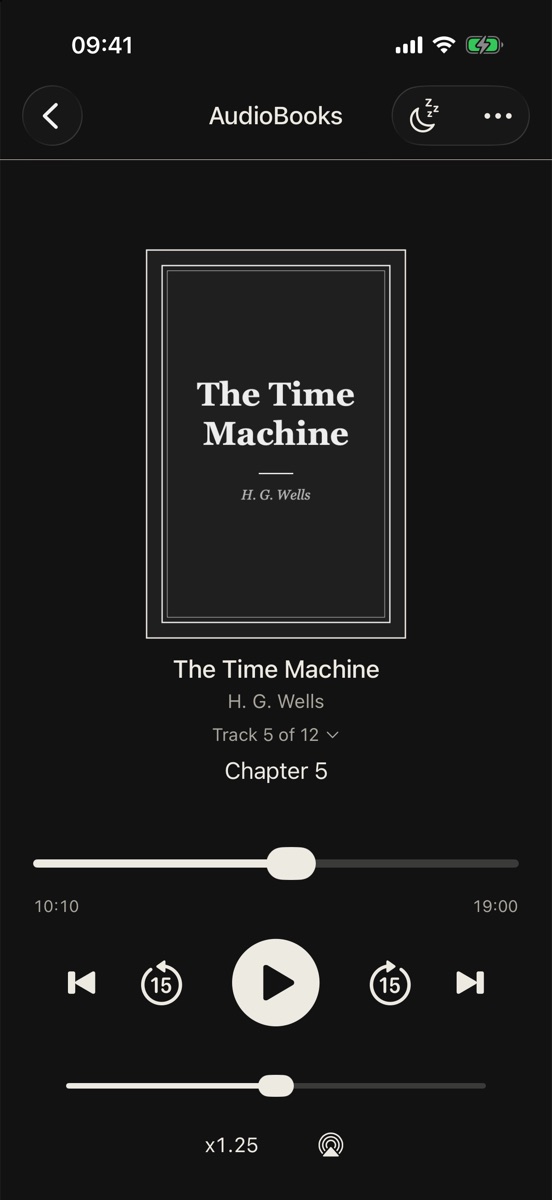
  • Speed: tap x1 at the bottom to show a slider from 0.5× to 2×. Press and hold to go back to normal speed. Each book remembers its own speed.
  • Audio output: the button next to the speed sends the sound to AirPlay or Bluetooth speakers and headphones.

Your place is saved for you

AudioBooks saves your position in every book all the time, so you can switch books and come back. When you return after a break, playback starts a few seconds earlier, so you don't miss the last words you heard.

Lock screen and headphones

Playback continues in the background. Use the lock screen, Control Center, your headphones or car controls to play, pause and skip. The lock screen shows the book title, chapter and author. Playback pauses for phone calls.

Book page with cover, progress bar and playback controls
Book page
Speed slider shown above the speed value x1.25
Speed slider
List of tracks with chapter names, file names and durations
Tap a track to jump to it

Chapters and tracks

A book is a list of tracks: the files in its folder, or the chapters inside one M4B file.

Order

  • By default, files play in the order of their names, with numbers sorted the way people read them: 2 comes before 10.
  • An M3U or M3U8 playlist in the book folder sets the order and the track names.
  • Track names come from the file tags when they make sense, otherwise from the file names.

If the order is still wrong, rearrange the tracks yourself, see Rearranging tracks below.

M4B chapters

Chapters inside an M4B file appear as tracks, including chapters in older M4B files that many players miss. They are part of one file, so they keep the order set by the file and can't be rearranged.

Rearranging tracks

Put the files of a book in the right order by hand, or sort them in one tap.

  1. Open the book, tap … at the top right and choose Manage tracks.
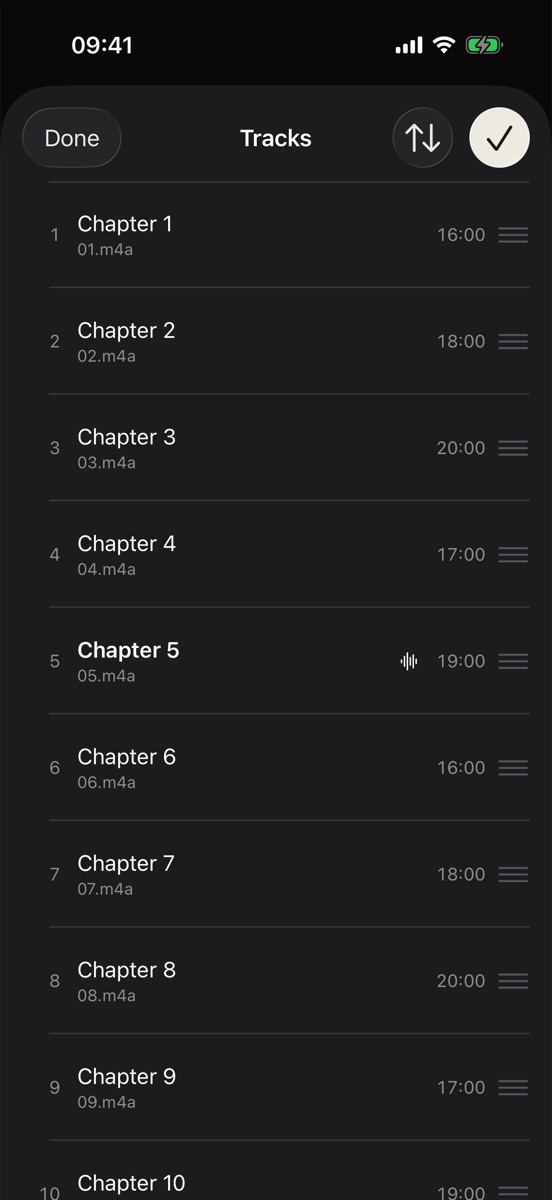
  2. Tap Edit. A handle ≡ appears on the right of every track.
  3. Hold a track by its handle and drag it up or down to its place. Repeat for as many tracks as you need.
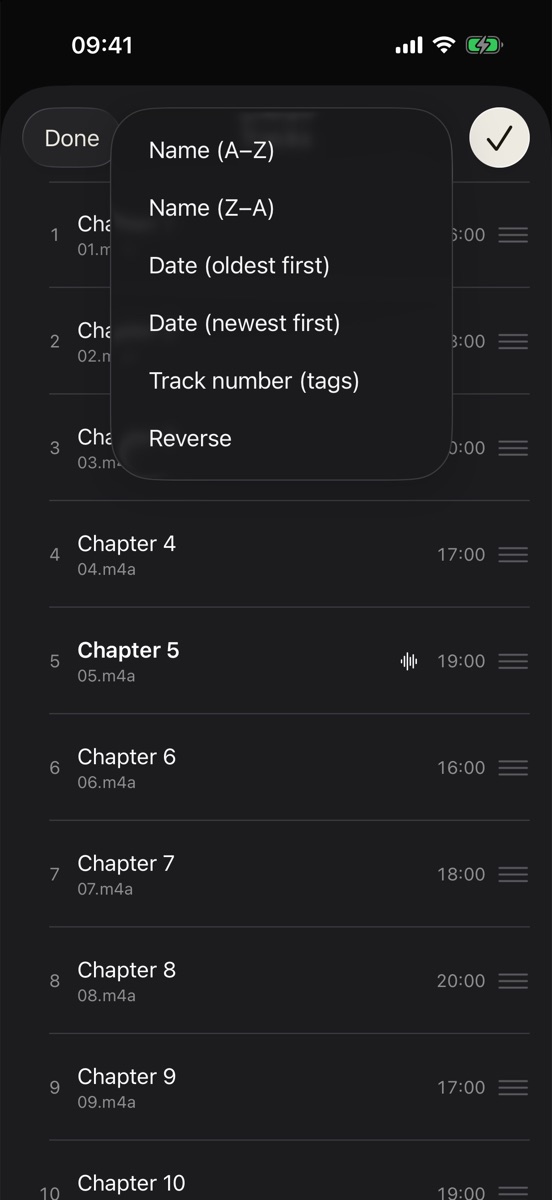
  4. Or tap the sort button ↑↓ next to the check mark and pick an order: Name (A–Z), Name (Z–A), Date (oldest first), Date (newest first), Track number (tags) or Reverse.
  5. Tap the check mark, then Done.
The new order is saved in the app. Your files are not renamed or moved. The current track and your position in it stay the same, and the new order works on the lock screen and with headphones too.
Tracks in edit mode with drag handles on the right of every track
Drag by the handle
Sort menu with name, date, track number and reverse options
Or sort in one tap

Sleep timer

Listen in bed without losing your place.

  • Where: the moon icon at the top of the library and of the book page.
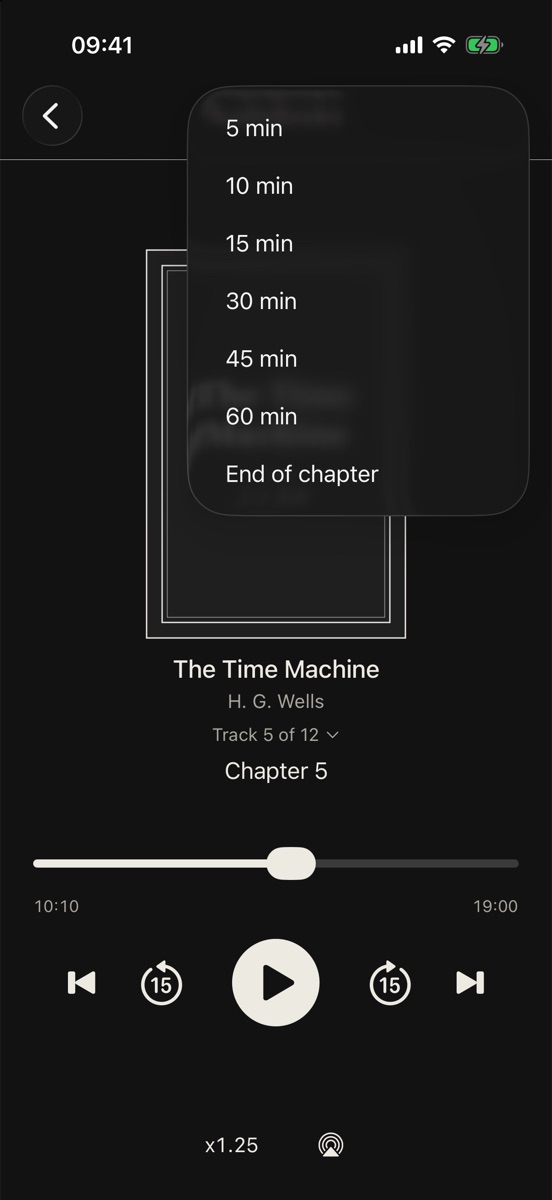
  • Choose 5, 10, 15, 30, 45 or 60 minutes, or End of chapter: playback stops at the end of the current chapter or file.
  • In the last 10 seconds the sound fades out gently instead of stopping abruptly.
  • While the timer runs the moon icon is filled. Open the same menu to see the minutes left or to turn the timer off.
Sleep timer menu with 5 to 60 minutes and End of chapter
Sleep timer options
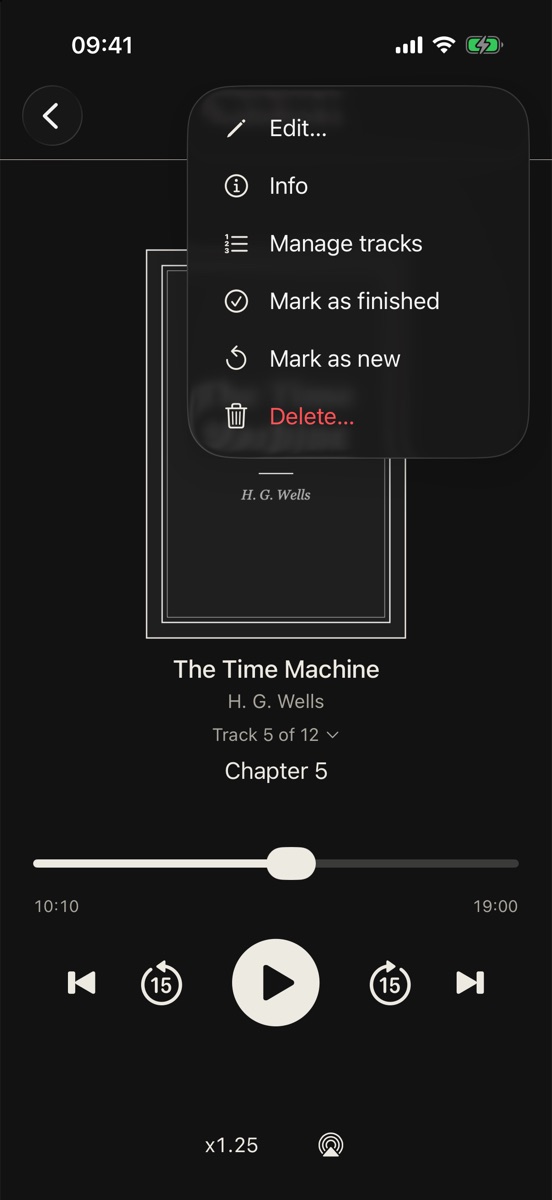
Book menu with Edit, Info, Manage tracks, Mark as finished, Mark as new and Delete
The … menu on the book page
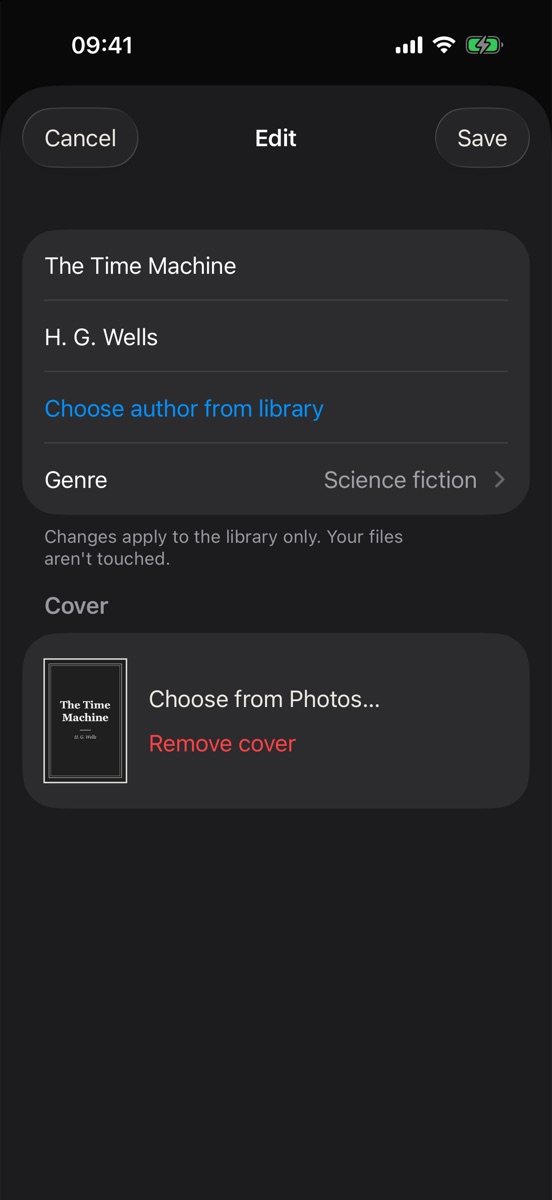
Edit screen with title, author, genre and cover
Edit

Editing a book

Open … on the book page, or press and hold a book in the library.

  • Edit… changes the title and author (Choose author from library keeps names consistent), the genre, and the cover: pick any picture from Photos or remove the cover. Changes apply to the library only; your files aren't touched.
  • Info shows where the files are, their format, size, number of files and total duration.
  • Mark as finished moves the book to Finished. Mark as new rewinds it to the start, after asking you, because the current position is lost.

Deleting a book

Delete… offers two choices:

  • Remove from library forgets the book and your position in it. The files stay where they are, and you can import them again at any time.
  • Delete with files also deletes the files themselves, from wherever they are stored, including iCloud Drive on all your devices. The app asks you to confirm, and this cannot be undone.

Files and cloud

Where your books can live, and what happens when they are not on the iPhone yet.

On My iPhone

The simplest option. Files play straight from where they are, with no extra space used and no internet needed.

iCloud Drive

Fully supported. If a book is only in the cloud, the app asks Download to play? and shows the download progress. Before downloading, it checks that the iPhone has enough free space.

Google Drive, Dropbox, OneDrive

These services don't let other apps open their folders. Download the book to the Files app first, for example to On My iPhone, then import it from there.

Offloaded by iOS

When storage runs low, iOS may remove downloaded iCloud files from the iPhone. The book stays in your library and shows a download button instead of play. Tap it to download the book again; listening continues where you stopped.

Moved or renamed files

If the files are no longer where they were imported from, the app says Files not found and offers to remove the book from the library or keep it. Put the files back, or import them again from the new place.

Not enough space

If a download doesn't fit, the app says how much space it needs. Free up some space in Settings → General → iPhone Storage and try again.

Formats

AudioBooks plays standard audio files that you own.

Type Supported
Audio
MP3, M4A, M4B, AAC, FLAC, WAV
Chapters
Chapters inside M4B files, including the older QuickTime chapter format
Playlists
M3U and M3U8 in the book folder: track order and names
Covers
Artwork embedded in the file, or an image in the folder such as cover.jpg or folder.jpg
Not supported
DRM-protected books, such as Audible AAX files or audiobooks bought in Apple Books. The app does not include or sell books.

Free and Full version

Everything for listening is free. You pay once only for a larger library.

Free

No time limit

  • Up to 3 books in the library at a time, of any length
  • All playback features: chapters, speed, sleep timer, lock screen, AirPlay
  • Search, sorting and filters by author
  • Editing titles, authors and covers

Full version

One purchase · no subscription

  • Your whole library, no limit on the number of books
  • Genres: set a genre for each book and filter the library by it
  • Everything from the free version
When a fourth book doesn't fit, the app offers the Full version instead of an error. You can also buy it in About (bottom left of the library). Changed phones or reinstalled the app? Use About → Restore Purchases; you will not be charged again.

FAQ

Answers to the questions we hear most often.

Files in Google Drive or Dropbox don't play.

These services don't give other apps access to their folders. Download the book to the Files app first (for example to On My iPhone), then import it from there. See Files and cloud.

My book was split into several books.

A folder with several M4B files becomes one book per M4B. If the files are parts of the same book, convert them into one M4B, or use MP3 or M4A parts in one folder.

The tracks play in the wrong order.

Files are sorted by name. Open … → Manage tracks → Edit and drag them into place, or sort them by track number from the tags. See Rearranging tracks. You can also rename the files with leading numbers (01, 02…) or add an M3U playlist to the folder.

The app says "Can't play this file".

The file is protected by DRM (for example from Audible or Apple Books), damaged, or in a format the iPhone can't play. Check that the file plays in another app, or try a different copy.

The book shows a download button instead of play.

The files are in iCloud Drive and iOS has removed the local copy to save space. Tap the button to download them again. Your position is kept.

Does the app copy my files or use extra storage?

No. Books play from where they are. Only books downloaded from iCloud Drive take space on the iPhone, the same as they would in the Files app.

What happens if I delete the app?

Your audio files stay where they are. The library itself (positions, edited titles and covers) is deleted with the app. After reinstalling, import the books again and restore the Full version in About → Restore Purchases.

How do I restore my purchase?

Open About at the bottom left of the library and tap Restore Purchases. Use the same Apple Account you bought the Full version with.

Privacy and support

AudioBooks has no accounts, no analytics and no third-party code. Your files and listening data never leave your iPhone. Questions, bugs or ideas? Write to us, and please include your iPhone model, iOS version and the app version from About.